 Personally, I am a user who like having enough “clean” the Inbox of your e-mail. To achieve this, one of the things I do is to separate emails on different accounts, like the more personal, work and others to avoid receiving junk mail in the first two. If not you like my way of manage the mail and it only that need is see only that want in a time certain, have that know that Mail us allows filter them post of way fast and simple.
This feature was already available in previous versions of iOS. What is new is the icon of the “button” to filter emails, now being three stripes as a funnel into a circle, all of the same blue color. As you may have already imagined you, the secret to filter emails in Mail for iOS begins this button. I teach how to use it.
Filtering emails in Mail is very simple
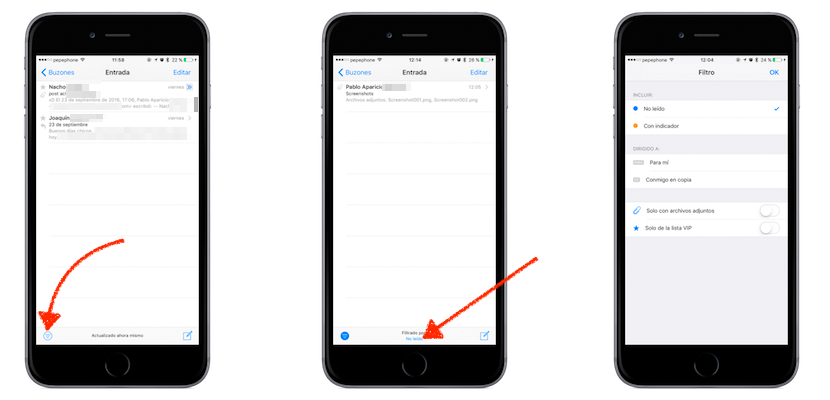
If played on the button of filter them post, by default we will show only them not read. What if this is not the way in which we want to see the emails? Because Mail gives us more options, but to access them now we will have to play on the text which puts “Unread” in blue in the lower part of the screen. You can filter them by:
- He mentioned not read.
- With indicator.
- Directed to us (for me).
- With me in copy (in “cc”).
- Only with attachments.
- Only of the list VIP.
If it wish, can use more than one filter to the same time. For example, you can select the unread and which have indicator, or those who have indicator and have us on the copy. Of this mode, the options us allow find just the or the post that are looking for.
Now now you have no excuse not to find that rebel mail that hides from you, right?