Although the two factor authentication takes time with us, many Apple users do not even know, or stayed with previous two-step verification, that although it may seem the same are two different security mechanisms. The two factor authentication now becomes a must for some of the new features of macOS Sierra iOS 10, watchOS 3, as for example the release of your Mac with Apple Watch. So we show you how you can set it up and start using these new features as soon as they are available to all.
Disable verification in two steps
The first thing you need to do is to disable verification in two steps if you had it activated. Go to the page of your account from Apple (link here) and under the heading security disable verification in two steps. You will have to set up security answers again, but it is a process that takes just a minute.
Turn on your Mac dual-factor authentication
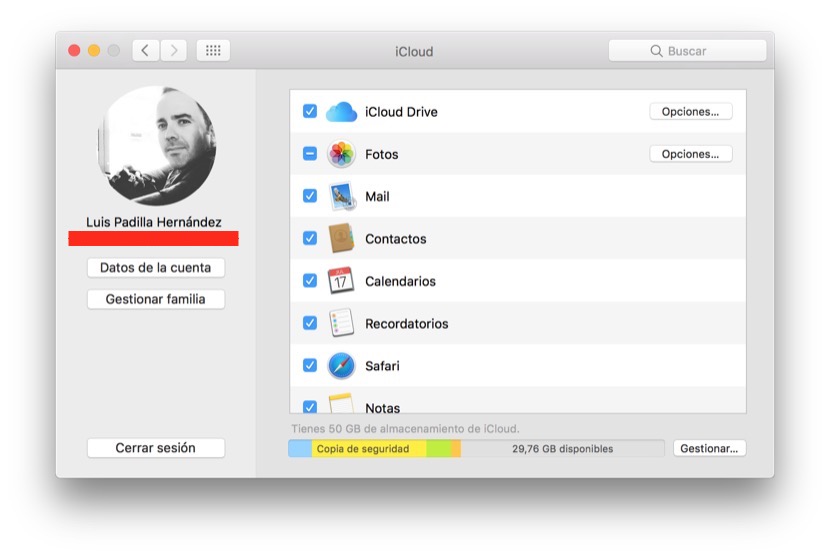
Go to preferences in the system and in the iCloud section click on “Account details”, together under your profile image.
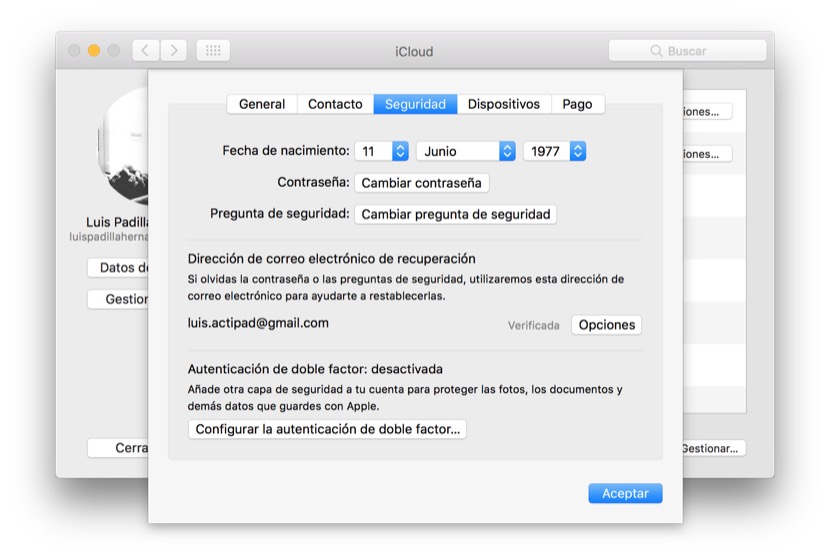
Within the tab ‘Security’ will see, at the bottom, the option to “Configure dual-factor authentication”, click on that button to start the configuration process. Click again on the button “Configure” that appears in the new window and follow the steps in the procedure until the end. Once you have the two factor authentication enabled on your account, and your Mac as a trusted device. You will have to verify the rest of devices from your Mac to be added as trusted devices.
Configure two-factor authentication from your iPhone or iPad
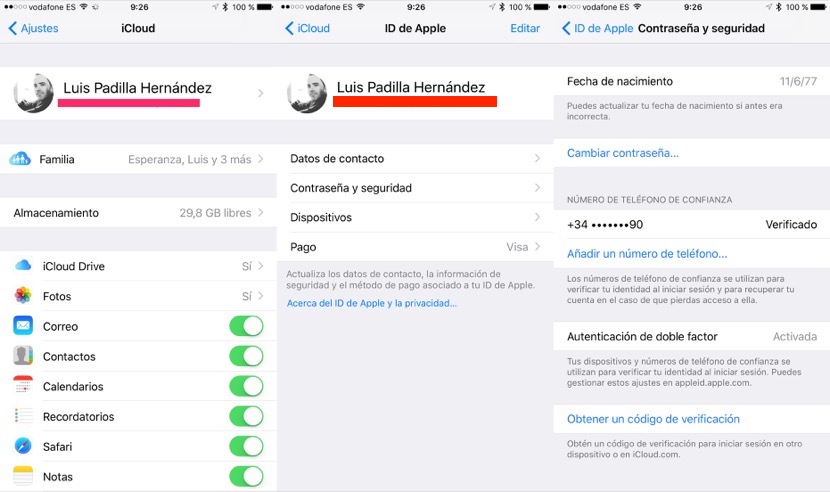
The process is virtually identical as described before in the Mac enters preferences system, go to the section on iCloud and click on your account, where is the profile picture. Then select the “Password and security” section, and you’ll see the “Two factor authentication” section, which in my case is already activated because I did it before on the Mac. Follow the steps until the end and you have already activated security method.
How two-factor authentication?
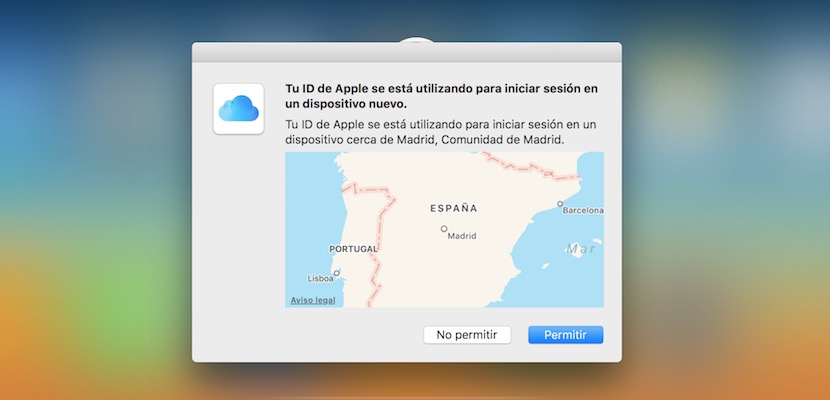
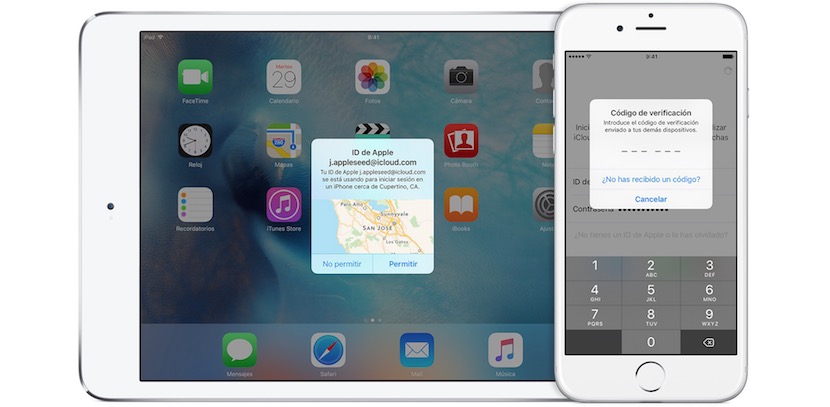
When Web enter your iCloud, Apple account, or add any new devices on your account, you will have provided that verify it before from one of your trusted devices. To do this, in your trusted devices, will be shown a window like that you see, that not only tells you that someone is trying to enter into your account but that also show you the location, and if you accept will give you a verification code required to add the new device or enter your Apple account. A more secure way of protecting your account is highly recommended to use, so if even you didn’t have it turned on, this is the ideal for this time.