It is always good to learn more about shortcuts and facilities that can offer us each of the native applications for iOS. We must mention that Safari is the browser used in iPhone and iPad for obvious reasons, therefore, we will focus on their tricks as the premise for this content. By that, this afternoon of Sunday I bring the best tricks to squeeze to the maximum Safari in iOS. Many know them, many others not, therefore, will allow you to get more party and surf more comfortably in your device. Passes, don’t miss our tips and collaborates with your own.
To load version of desktop-load without blocking
The mobile version of certain Web pages often have fewer features, or are literally catastrophic to use, therefore, prefer the full version. For this, will have that press on the button of cooling in Safari’s form prolonged, some two or three seconds. Act followed us will provide a menu shortcut. This menu will contain two possibilities, it’s load the web site of desktop, or it of load the web site without bloqueadores of content (in the event of them have installed). Well, that again you can save you scroll down to the computer to perform the tasks you want in the mobile web pages with little content.
Tabs closed recently
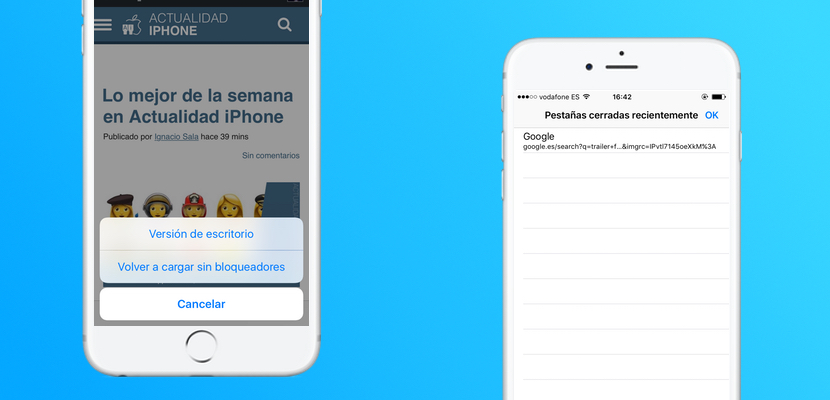
This function we will allow return to load those tabs that have closed by error without give us has, or simply want to return back in a navigation. To do this open the multi-window Safari with the right bottom button, then let your finger pressed on the “+” symbol that appears just below the Center. Will be shown a new tab called “closed recently” and that we can see those tabs that we have closed just minutes ago.
Search for text in a page
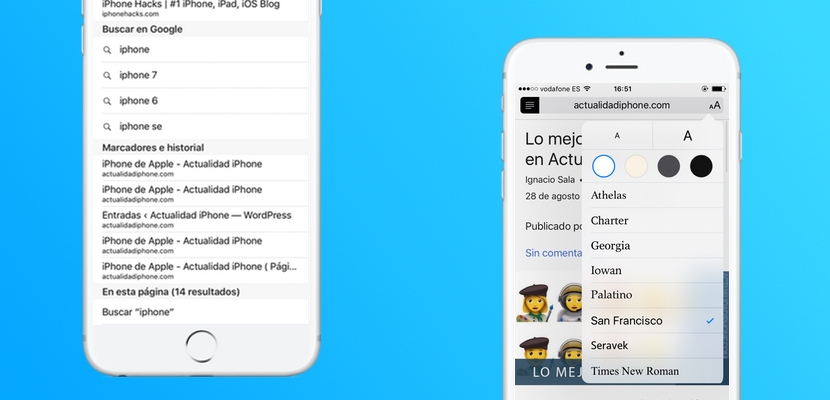
Often entered in a page that appears for example a tutoring, but we are looking for a content specific and not us want read absolutely all the words of the text. Easy, click on the address bar and type the word that we are going to search, without fear. Outcomes will us web sites and Google searches, but will appear below, the function “on this page (x results)”. This would be the search engine of safari for iOS, something like what we get on Safari for macOS when you press the shortcut “cmd+F” in a web page. Fantastic right?
Add to the reading list for later viewing offline
We, as editors, some more and some less, but at least I personally use a lot this function. When surfing the net I find some content that I really like and I think that it is important to share it with you, I would add it to the “reading list”. This feature in Safari allows us to store certain websites to be able to read them after shape completely offline. How is made? Easy, among them buttons of down have the of share, that as well you know, also serves for the extensions. Pressing that button will opens the context menu always, and between the functions below (those of extensions) have one which reads “Add to the reading list”. If we then want to access this reading list, by clicking on the history (the button with a book at the bottom), reading list is the menu of the environment depicted with glasses (like those of Steve Jobs by the way).
Use reader view
When browsing a Web site with much written content but is also full of buttons and other features extras, is good to use reading view. Many Web sites just beside the address bar an icon us represented by 4 straight lines. When pressed, website will be converted to the read mode, this mode will allow us to modify aspects of the web page, the text and the contents as if outside a book from iBooks, is fantastic when it comes to navigating or archaic sites with great content.