
We continue with our fantastic tricks of yesterday. Today I bring you another good batch of shortcuts for Safari in iOS, following to which I offered yesterday (not you them Miss), that us will allow improve to the maximum our experience of navigation. Apple is not very given to the tutorials, in fact there are features in iOS that many are unaware until after several versions, so we want to teach you all the secrets of Safari for iOS, the most used browser in the operating system for obvious reasons. Go forward then with another good list of tricks and shortcuts for Safari on your iPhone or iPad. Not you them Miss, and not forget to collaborate if you know more shortcuts that not are included.
ICloud pages / Handoff
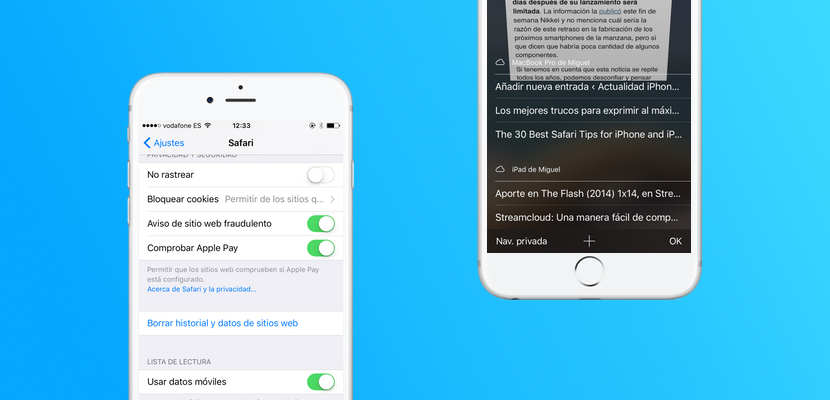
Like many you know, thanks to the cloud and the connection between different devices iOS/macOS, will be navigating a web page from our iPhone for more late continue for example on our iPad. If want access to these pages that we have left open in our other device solo have that go us to the menu multi-window of Safari. When is us show all the windows open slide the content towards up making swype, i.e., us go towards it part low of the screen. Below we will see “iPhone/iPad/Mac xxxxx”, and we can follow quickly navigating these web pages that are open on our device.
Fast scrolling to the beginning
There are pages that they are extremely long, above all including the one known as “infinite scroll”, this is that we sailed by a web page simply by scrolling down, but page never fails to load, so we don’t have to go clicking on links or changed pages. However, the problem comes when we have to go back up to above. iOS and Safari have a system of “back to top“, which will allow us to go back to the beginning with just a touch. To do this we must simply make a short press on the watch of the top bar. This will work in Safari and other applications. I personally is the choice more fact less when I use another mobile operating system.
Restrict / allow certain websites
Is a function fantastic, above all for who want to take advantage of the control parental and restrict according to what web sites to their children. This will sail to iOS settings, in the section General will find a section called “restrictions“. Once we activate the restrictions, will sail down, where we have the constraints of web browsing. We also activate this function to access the type of restriction you want to, we have: block certain web pages; Limit the content for adults; Only specific websites. Thus we will be able to customize it to your own liking and avoid that the youngest House navigating unsuitable web sites. For this you must have activated the code of safety, not will work with Touch ID.
Share a page using AirDrop
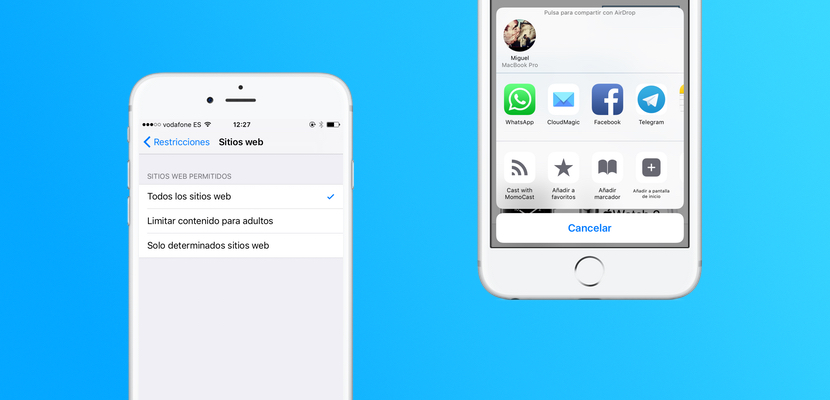
A time more AirDrop us saves her life. Thanks to this service of Bluetooth compatible with all Apple devices we can quickly share a web page. To share a web site through AirDrop will follow the same steps as to share any file through this function. Click on the share button, and at the top we will have devices available via AirDrop. We remember AirDrop to work properly we should have the Bluetooth-enabled. More easy impossible, leverages AirDrop, which is pretty fast.
Delete the browser’s cache and history
Sometimes, above all if we are users diehard of Safari, the browser can cause failures due to the accumulation of cookies, cache and data of web sites. On the other hand, perhaps we want to delete Safari history simply for pleasure, and it’s fairly easy. We go to settings of iOS, and once inside, look for the Safari-specific settings. One of the functions in the Safari menu is “delete history and data from web sites“. Pressing will clear both the cache and the data of web sites. It has well often perform this action to slightly improve the performance of Safari.