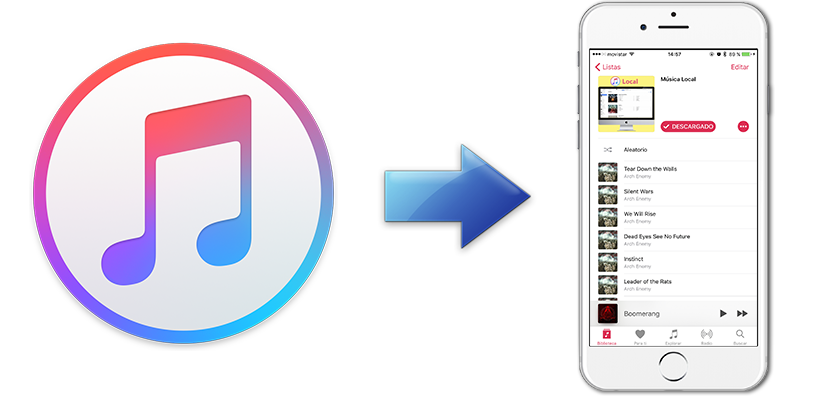
 With a device iOS with 32GB of storage it is logical that we have to manage the content to not run out of space. This is minimized if our device has 64GB and is virtually eliminated with a 128GB model. East year to not buy the 7 Plus 32GB iPhone, I bought a top model with more space than I need. With this storage, I decided the possibility of copying all my music from iTunes to the iPhone library.
Apple is a company characterized by providing us with many things, being the camera of the iPhone one of the best examples. But there are also things in which it seems that they have not thought about and make us think to us what would be the best way to get to perform some tasks. iTunes offers the possibility of all our library copy music to the iPhone, but to get it in this way will have to physically connect your iPhone to your Mac or PC. If we are subscribed to Apple Music and what we want is to download it to your iPhone without connecting it to your computer, including the new songs that we add, will have to follow the process that I detail below.
Download our music library to the iPhone
Before you begin to apply the steps, I insist that you need to be subscribed to Apple Music to carry out this process. The reason is that this method makes use of a library of iCloud that we will not have access if we are not subscribed to the Apple streaming music service. Made it clear that, the secret is to create a playlist. With this in mind, we will unload our entire library of iCloud to our iPhone using the following steps:
- Open iTunes.
- In Mac, press the keys CMD+ALT+S so appears the panel side, in the case that not it may have visible. On Windows, if I am not mistaken, it should be done from the menus of iTunes.
- We click on the sidebar to make appear the options and select “Create playlist ingeligente”.
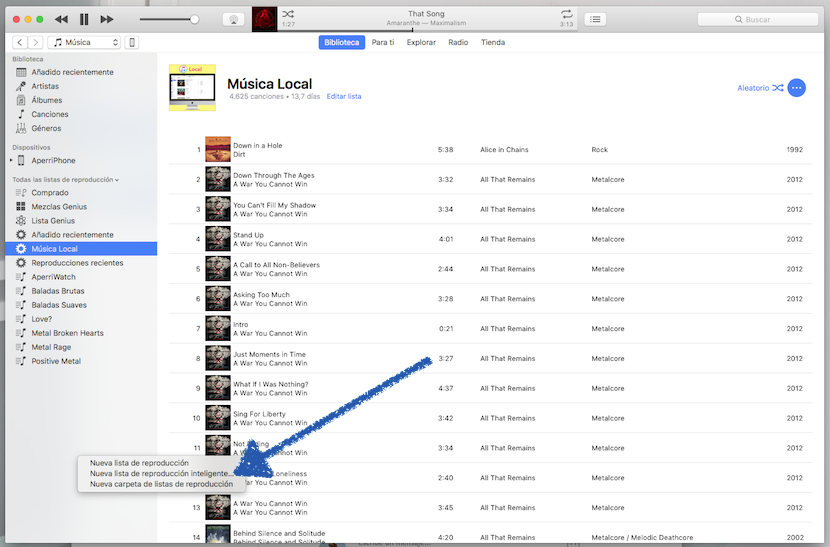
- Not bad. Here you have to configure what we want. In my case, that I just want to pass the music you have stored locally on the Mac, I have created a list called “Local music” whose content must comply with the rules:
- Music – marked items.
- Illustration of the album is real. This is true for my own library because I have well organized and all the songs have their cover.
- Location – is – this computer.
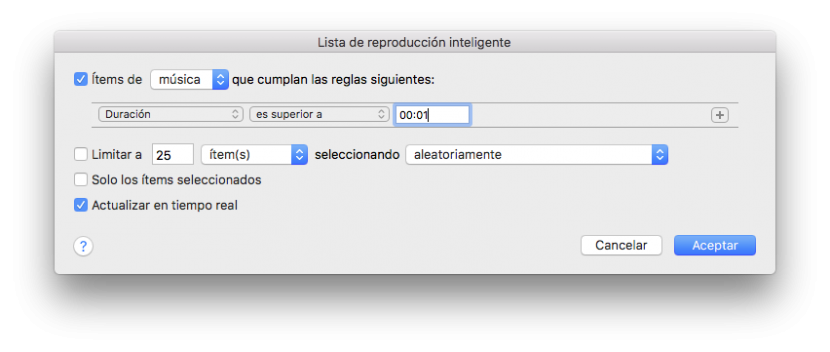
- Logically, each has set at this point what you prefer. If you want to be copied throughout the library regardless of whether it is on your computer or in iCloud, a good idea can be to configure here the rule “Duration – is superior to – 00: 01”, which will cause any song that has more than one second will stop to the list that we are creating.
- Mark the box that puts “Update in real time”. Thus, any new song that we add to our library will stop to the list. The list should look like the following screenshot:
- OPTIONAL: click on the image and add a cover.
- We would have already done with iTunes, but it will have to wait to create the complete list.
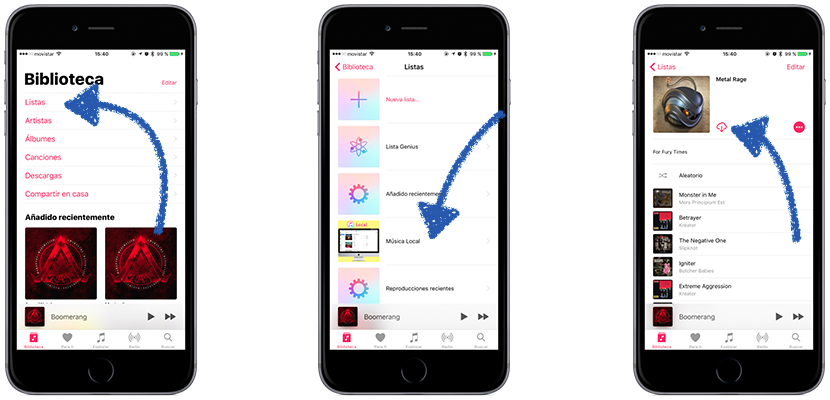
- Now, since the iPhone Let’s library, select the paragraph lists and choose the list that you just created.
- Finally, we touched on the cloud icon with the down arrow to download the list. In the screenshot I’ve included have had to choose another list because my “Local music” list I already have complete on my iPhone.
Depending on the size of your library, it takes more or less to download. It is also likely that the iPhone is hot if it takes a long time to download all the music, but it is something normal. Starting from now, when we restore and want to download all our music library, all you have to do the steps 7, 8 and 9. Has it served you this tutorial?