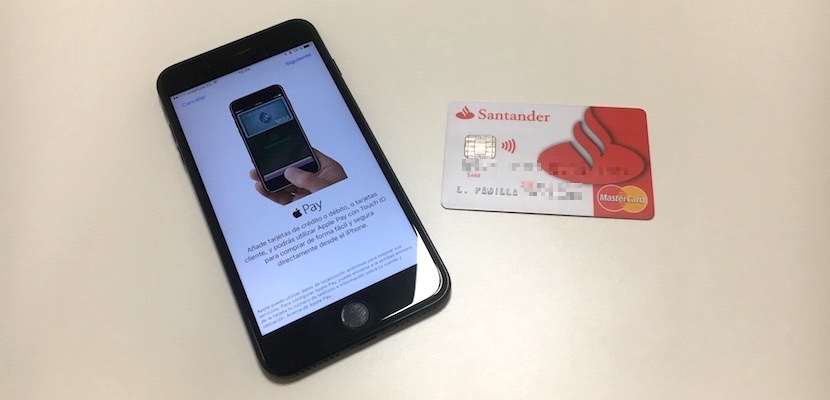
Tomorrow is the day in which Apple Pay will start to become a reality in Spain. So far we have spoken much of this payment system with mobile, but we have never been able to use it. at the time of its launch will be limited (in the absence of official confirmation) to Banco Santander, but are expected to soon new entities will be added and the system will expand to other banks and card issuers. The question is forced:I add my credit or debit card to Apple Pay? how payment using Apple Pay? It is very simple and we detail the steps below.
Requirements to enable Apple Pay on your iPhone
The first thing we need is that the service is already active (at the time of writing this article still is not) and have a compatible card, in addition to a Apple Pay-compatible device. Compatible iPhone models are the iPhone 6 and 6 Plus and Plus 6s, 6s and the iPhone 7 and 7 Plus. Also you can use Apple Pay in your Apple Watch or on your Mac if you have macOS installed Sierra, but add the cards should be made from the iPhone, so we will focus on this device for the tutorial.
How to add a debit or credit card
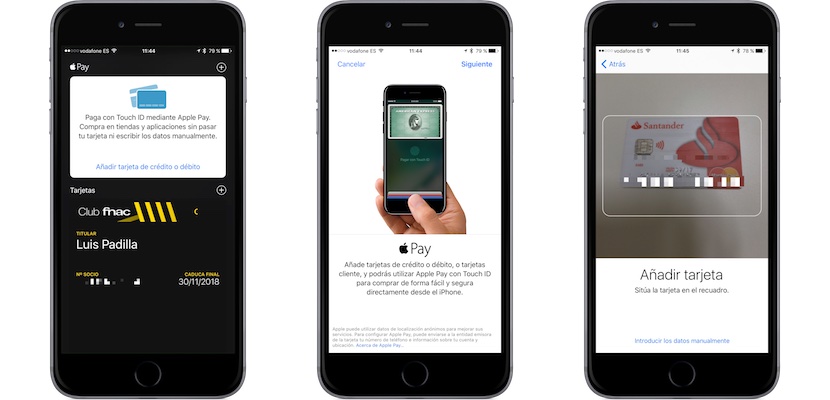
We need to open the application Wallet, this app that we have in a nearly-forgotten folder but that from now on we must take into account. Open it will see a new option appears at the top: Apple Pay. By clicking on “Add credit or debit card” Apple Pay configuration menu appears and our card can scan with the camera or manually enter the data. After a couple of screens where we will ask for some data such as the expiration date and security code, we’ll already have our card added. This procedure can repeat several times to add several compatible cards.
Also a new menu in settings, will appear just below “iTunes and App Store” where you can configure Apple Pay and add new cards. The only option we have configuration is to enable that double-clicking the button start locked iPhone Apple Pay to be opened to select the card and make the payment, something which is recommended to have activated so pay with the iPhone is faster and easier.
Pay using Apple Pay from your iPhone and Apple Watch
Once we have added cards, pay is something very simple. Provided that the business has a compatible terminal you can use Apple Pay, and you don’t need to be compatible with the service of Apple, simply be “Contactless”, something quite common in our country. Click twice on the home button, select card with which we want to pay and bring iPhone to the payment terminal. The identification is carried out by means of Touch ID, it is not necessary to enter any code or the signature of the buyer.
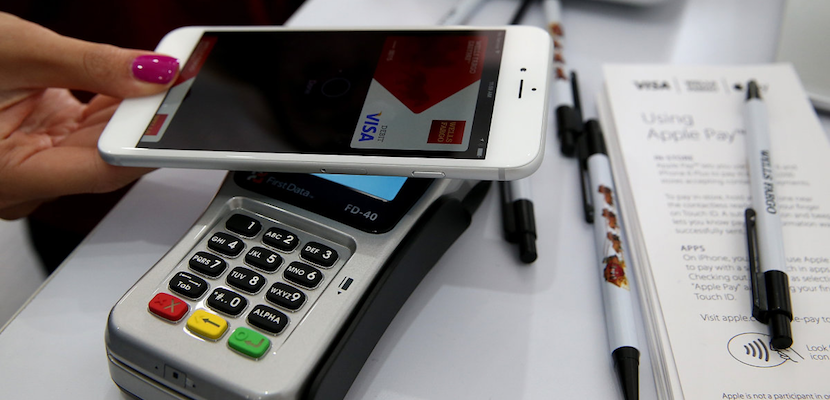
You can also pay with the Apple Watch, using the same cards that we have added to the iPhone. To activate Apple Pay have to press twice button which under the Crown and then approach the clock to the payment terminal. In this case there is no need to use any method of identification, since Apple Watch asked you whenever you put on your wrist and remains until you take off your.
Pay using Apple Pay from your Mac
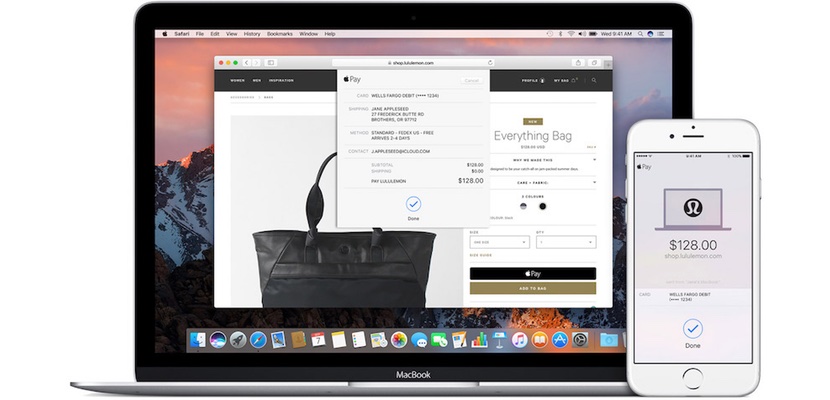
Usr Apple Pay on the Mac is somewhat more complicated, although little. You need to have an iPhone compatible Apple Pay, a Mac have macOS Sierra and also is compatible with Continuity and have added the cards as we noted before. When you enter a website that is compatible with the Apple payment system you can choose and you will have to authenticate using your iPhone, which will ask you to sign using the touch ID. In the new MacBook Pro is not necessary this because already have Touch ID.
You can also pay with Apple Pay from web pages that you access from your iPhone and iPad, using the Touch ID of the device itself, provided that accept payment from Apple System.