 As we have already mentioned on several occasions, one of the most outstanding novelties of iOS 10 is in the renewed, for the second consecutive year, messagesapp. The application installed by default, which also receives the name iMessage, has come with support for stickers, Digital Touch and a special way of sending the bubbles or messages which can choose, among other things, the strength that we send these bubbles.
We can send the bubbles in different ways, such as using an invisible ink that you will have to remove a finger to see what hides under or a force of shipping which will express what we feel when sending the message. For example, something that we could see in the keynote in which presented iOS 10 was a message to apologize (I’m sorry) sent in a field that was very soft. You explain how to do it then.
How to send bubbles especially in iOS 10 messages
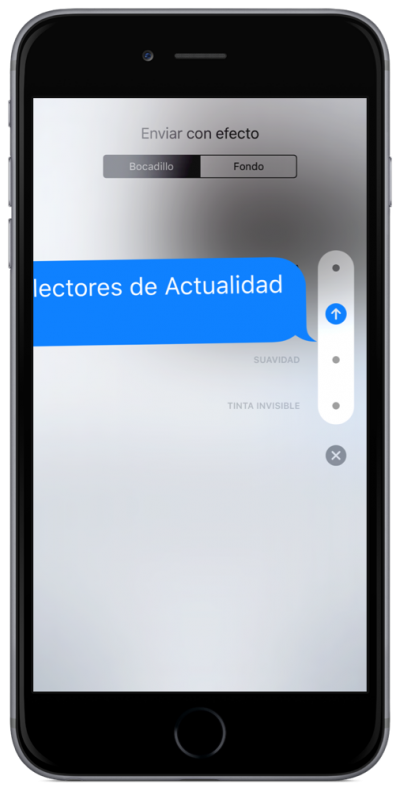
The truth is that it is very simple, but as in everything, must investigate or know how. We will do this using the following steps:
- Logically, the first step is to open or access a chat with one of our contacts or groups.
- Already within the chat, write the message.
- Now, instead of touching the arrow to send the message, will have that make an of the two following options:
- If your device has a 3D Touch screen, press a little stronger (gesture Peek) on the arrow of shipping for options will appear.
- If our device not has screen 3D Touch, enough with that press and keep on the arrow of shipping to appear the options. If the options are not listed you in this second case, and although it bothered, I’ve read many cases complaining that you cannot access them. It is a fairly widespread bug that Apple should fix (if not already done so with the release of iOS 10.0.2). Also can be a solution to disable the function “Reduce movement” from the settings of the iPhone or iPad.
- We have already entered options and between them we can see:
- Force.
- Cry.
- Softness (this is who used to ask apologies in the Keynote)
- Invisible ink.
- We now touch on top of one of the points that are next to each option.
- Finally, we touched on the arrow that will have appeared above the point in the previous step.
How to send messages with animated backgrounds in iOS 10 messages
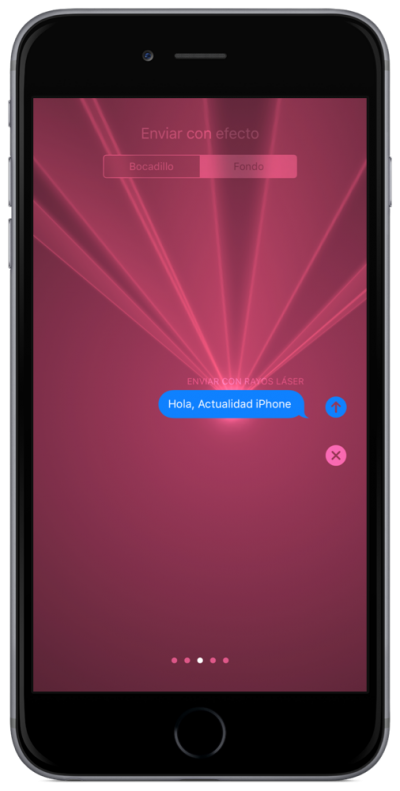
The method for sending messages with animated backgrounds share the steps 1 to 4 of the previous point. In step 4, instead of choosing how to send bubbles, what we have to do is to look at the top of the screen and Select the “Background” tab.
If you look at the bottom of the screen you can see that there are several points as those which indicate that there are multiple “pages”. The only thing we have to do to choose a fund or another is to slide your finger to the left or to the right. One now that we are interested in, send the message by touching the arrow of shipping. Easy, isn’t it?
Now you can already send messages in a special way in iOS 10. I have said on different occasions, but my I like very much and made less use it with more contacts. And you?