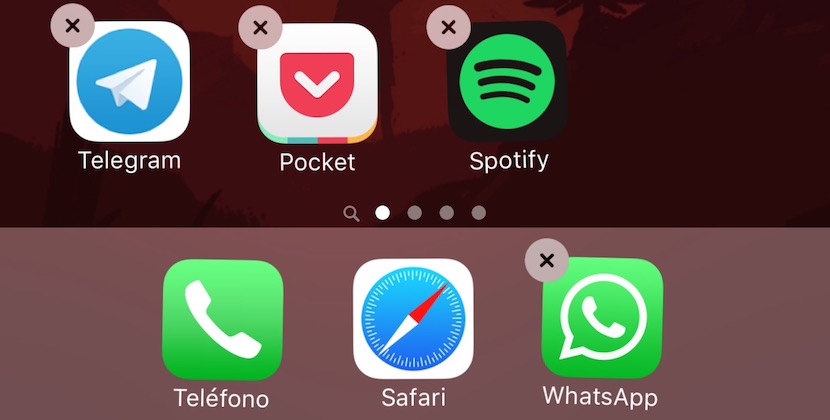
You can remove the grey x that allows you to delete the application.
Suppose you’re a parent who leaves the iPad to your small monstruillo. Monstruillo who like fiddling with all the screen because they call you attention vivid colors, for example. Suppose if not, friends come home, among them the typical who cannot handle the technology and that it only uses “guasap” and order him to put music on your iPad. If you let other people to use your iPad, you’re risking that deleted apps by accident (or not) of your device.
In this tutorial we are going to teach tricks to configure your iOS device and no one (including yourself) can delete applications unless they know the security code.
Apple knows that the iPad or the iPhone, after all, are family or social devices which, in the end, only the owner not used although this hijack the use to 99% of the device. Why has implemented an iOS security options that allow you to create a series of restrictions and so worry a little more if you leave your device to anyone.
( 1) go to settings – > General – > restrictions, giving “On restrictions” (if not you had them activated before) you will be asked to enter the security code that you want to configure for the restrictions.
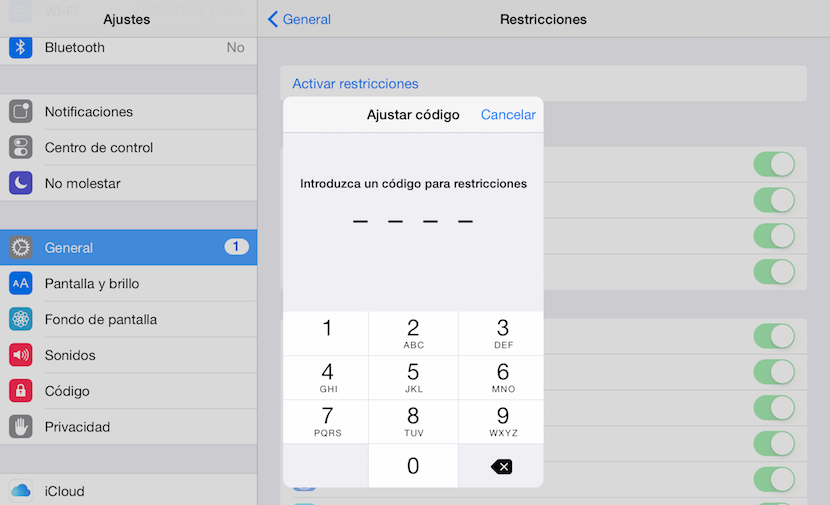
Note: This code may differ from the device unlock code. But if you use a different and you forget, you’ll have to completely restore your iPad or iPhone to change the restrictions again.
( 2) in the section “Allow”, disable the toggle “Delete applications”
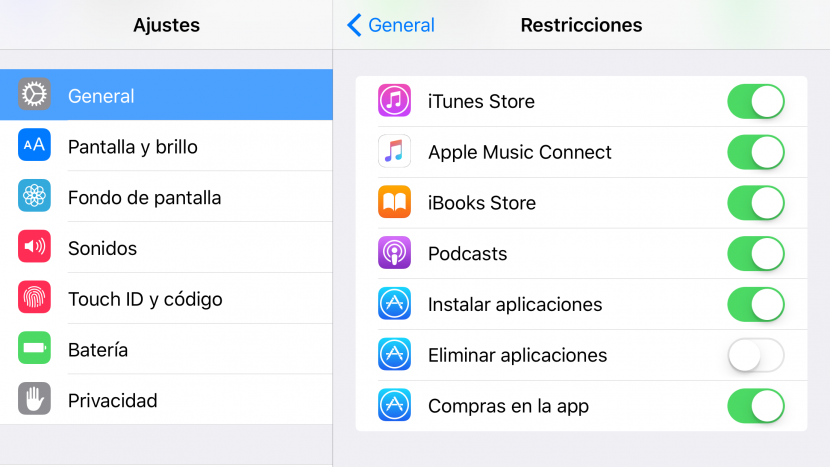
( 3) back to the menu giving General top left button. In this way, the restrictions will be saved.
Activating this restriction, the grey “x” delete the application will not appear as much as someone hold your icon.
To prevent the installation of new applications, it would be with deactivate the toggle to “Install applications”. In this way, you can also disable purchases within applications.